
Configuration reference
nuntio is configured with a single TOML file. Every setting is optional, so an empty or missing file gives you the defaults.
Location
nuntio uses the first of these files that exists:
~/.config/nuntio/config.toml, or$XDG_CONFIG_HOME/nuntio/config.tomlifXDG_CONFIG_HOMEis set to an absolute path~/.nuntio.toml
If neither exists, nuntio runs with the defaults. A config.toml you then create in an existing ~/.config/nuntio/ directory is picked up right away; a new ~/.nuntio.toml takes effect when you restart nuntio. If both exist, ~/.nuntio.toml is ignored and a warning says so. nuntio --config <path> skips the lookup and uses the given file.
The paths are the same on Linux, macOS and Windows (on Windows, ~ is your user profile folder, e.g. C:\Users\<name>), so one dotfiles setup works everywhere. Symlinked config files are supported.
Custom themes go in a themes/ directory next to the config file, for example ~/.config/nuntio/themes/. With ~/.nuntio.toml, they still go in ~/.config/nuntio/themes/.
Editing in the terminal
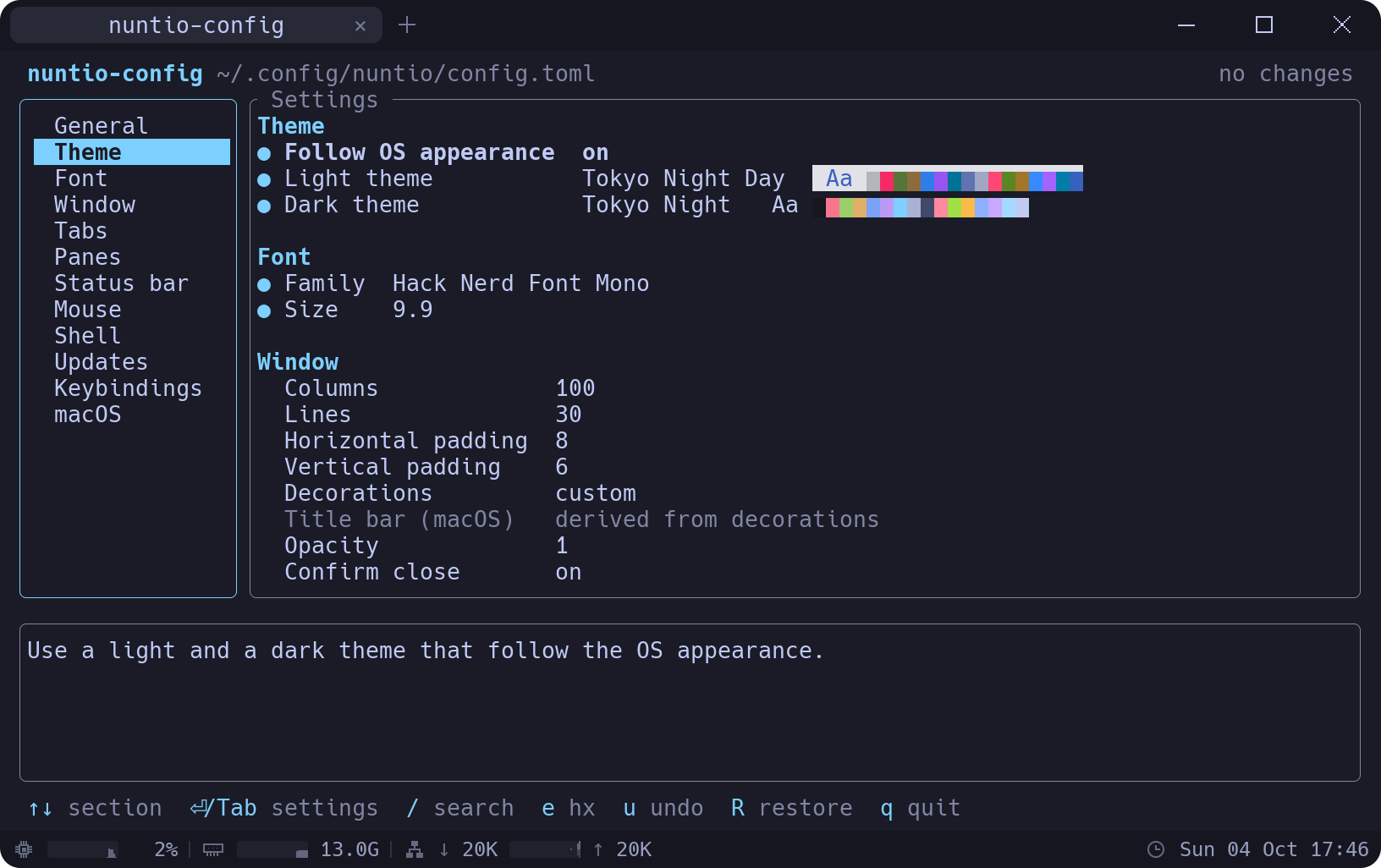
Run nuntio-config in a nuntio tab to change settings without editing TOML by hand, or open it in a new tab with Ctrl, (Cmd, on macOS, the open_settings action). The command exists only inside nuntio, and it edits the config file this nuntio uses, including one given with --config.
- Settings are grouped by section. Choices offer only valid values: the variants of an option, your installed themes (with a color preview) and monospace fonts, and the keybinding actions. Numbers stay within their range.
- Every change is written right away and applied by hot reload, so you see it in the window as you go. A change that would make the file invalid is refused with the reason.
- Comments and the layout of your file are kept. Resetting a setting to its default removes it from the file.
- A
●marks settings that are set in the file.
| Key | Action |
|---|---|
| ↑ ↓ | Move |
| ← → | Step a number, cycle a choice, toggle a switch |
| Enter | Edit: open the list of choices, the text input or the checklist |
| Space | Toggle a switch |
| Tab | Switch between sections and settings |
| d | Reset to the default (in keybindings: delete the entry) |
| a | Add a keybinding |
| / | Search all settings |
| e | Open the file in your editor: $VISUAL, else $EDITOR, else vi (Notepad on Windows) |
| u | Undo |
| R | Restore the file as it was when nuntio-config started |
| q | Quit |
In a list of choices, typing filters it; moving through themes or fonts previews each one, Enter keeps it and Esc goes back. The font list also accepts any name you type. In the status bar items, Space shows or hides an item and Shift↑/↓ moves it. s adds a spring below the cursor and d (or Delete) removes one; a line above the list sketches the bar.
A key combination for a keybinding is typed as text, like Ctrl+Shift+Enter (see Key syntax), because a terminal can't report every combination reliably. The editor checks it as you type and warns when the combination is already bound.
If you edit the file in another editor while nuntio-config is open, it reloads the file before the next change. After e it reloads as soon as the editor exits, and u undoes the edit. On Windows, shells that shell.wsl starts in a WSL distribution don't get the command. nuntio running inside WSL itself (WSLg) is not affected.
Notes
CtrlShiftN (CmdShiftN on macOS, the open_notes action) opens your notes in a new tab, CtrlAltShiftN (CmdOptShiftN, open_notes_split) next to the focused pane. You can also run nuntio-apps notes in any nuntio shell; --dir <path> uses another folder. The shell menu (right-click on the tab bar's "+") has an "Open Notes" entry too, unless notes.in_shell_menu is off.
- Each note is a Markdown file in one folder:
notes.directory(see Options), by default~/.local/share/nuntio/noteson Linux,~/Library/Application Support/nuntio/noteson macOS and%APPDATA%\nuntio\noteson Windows. The title is the file name. - The editor shows Markdown rendered (headings, bold, italic, code, lists, quotes, checkboxes) except on the line with the cursor, which shows its source.
- Notes are saved a second after you stop typing, and when you switch notes or quit. If another program changes the open note while it has unsaved changes, you choose whether to overwrite or reload it.
- Todos are list items with a box:
- [ ] milk. The list shows each note's progress, like2/5, and CtrlO lists the open todos of all notes. - Deleted notes are moved to a
.trashfolder inside the notes folder. - Drag the line between the list and the note to make the list wider or narrower; the width is saved as
notes.sidebar_width.
| Key | Action |
|---|---|
| CtrlN | New note |
| CtrlO | Todo overview: Space toggles, Enter opens the note at that todo, a shows done todos |
| CtrlB | Show or hide the list of notes |
| CtrlS | Save now |
| CtrlQ | Quit |
| F1 | All keys |
| Enter | In the list: edit the note |
| / | In the list: filter by title |
| r or F2, d | In the list: rename, delete |
| CtrlT | In the editor: toggle the todo on the cursor line, or make the line a todo (a click on a box toggles it too) |
| Enter | In the editor: continue the list; on an empty item, end it |
| Tab / ShiftTab | In the editor: indent or outdent a list item |
| CtrlZ / CtrlY | In the editor: undo, redo |
| CtrlC / X / V | In the editor: copy (also to the clipboard), cut, paste what you copied in the notes |
| Esc | In the editor: back to the list |
Reloading
nuntio watches the config file and the themes/ directory and applies changes as soon as you save. You can also reload manually with CtrlShift, (CmdShift, on macOS).
- Syntax and type errors show a red banner with the line number, and invalid values (for example a font size outside the allowed range) one that names the setting and the allowed range. The previous settings stay active.
- Unknown keys (typos like
famliy) show a warning banner. Everything else in the file is still applied. - If the config is invalid at startup, nuntio starts with the defaults and shows the error.
- With several problems, the banner shows how many (
(1/3)). Click it for the next one, or click the × to close it.
Most settings apply to open panes right away; scrollback too, and a smaller value drops the oldest lines. shell and working_directory apply to panes opened after the change. window.columns and window.lines are read at startup, and window.decorations needs a restart; so does window.opacity below 1.0 when nuntio started opaque.
Full example
This file lists every option with its default value:
# Program to run in new panes. Default: $SHELL on Linux and macOS
# (falling back to sh), PowerShell on Windows.
# shell = { program = "/bin/zsh", args = ["-l"] }
# On Windows, start in a WSL distribution instead, optionally as another user:
# shell = { wsl = "Ubuntu", wsl_user = "root" }

# Where the first pane and new tabs start. Default: your home directory.
# working_directory = "~/code"

# Lines of history per pane.
scrollback = 10000

# Programs may copy to the clipboard (OSC 52).
clipboard_write = true

# Ask before pasting line breaks that would run commands at once.
confirm_paste = true

# Programs may turn on the kitty keyboard protocol.
kitty_keyboard = true

# One theme name…
theme = "iTerm2 Default"
# …or a pair that follows the OS appearance (replace the line above):
# theme = { light = "Tokyo Night Day", dark = "Tokyo Night" }

[font]
# Any installed font. Default: the system's monospace font.
# family = "JetBrains Mono"
size = 13.0

[window]
# Size of a new window, in cells.
columns = 100
lines = 30
padding = { x = 8, y = 6 }
decorations = "custom"
# macOS only; derived from `decorations` unless set.
# macos_titlebar = "transparent"
opacity = 1.0
confirm_close = true
gpu_acceleration = true

[tabs]
hide_when_single = true
title = "auto"
inherit_directory = false

[panes]
dim_inactive = 0.15

[status_bar]
enabled = false
position = "bottom"
items = ["cpu", "memory", "network", "battery", "datetime"]
datetime_format = "%a %d %b %H:%M"
rainbow = false

[updates]
# Ask GitHub once a day for a newer release.
check = false
# Where a newer release is announced (the status bar item where
# `status_bar.items` places `update`).
banner = true
tab_bar = true
status_bar = false
# Release packages: download and install updates, restart into them.
install = false
restart = false

[mouse]
copy_on_select = false

[notes]
# Folder of the notes. Default: <data dir>/nuntio/notes.
# directory = "~/notes"
in_shell_menu = true
sidebar_width = 24

[herdr]
enabled = false
on_startup = false
program = "herdr"
forward_actions = true
agent_banner = false

[tmux]
enabled = false
on_startup = false
program = "tmux"
forward_actions = true

[macos]
option_as_meta = "none"

# [[keybindings]]
# key = "Ctrl+Shift+O"
# action = "new_tab"

# [[profiles]]
# name = "PowerShell"
# program = "pwsh"
[!NOTE] TOML assigns keys to the most recent
[section]header, so top-level keys liketheme = "…"orshell = { … }must come before the first section. Otherwise nuntio reports them as unknown keys (for examplemacos.theme).
Options
Top level
| Key | Type | Default | Description |
|---|---|---|---|
shell | table | platform shell | program (string) and args (list of strings), or wsl to start in a WSL distribution. See Shell. |
working_directory | string | home directory | Where the first pane and new tabs start: an absolute path, ~ or ~/…. For a WSL shell, a Linux path (/srv or ~/code). --working-directory on the command line takes precedence; if the directory doesn't exist, nuntio warns and starts at home. Splits, and new tabs with tabs.inherit_directory, start in the focused pane's directory instead. Unset, the first pane starts in the directory nuntio was started in (at home when started from the Finder or Dock on macOS). |
scrollback | integer | 10000 | Lines of history per pane, at most 1000000. |
clipboard_write | bool | true | Let programs copy to the clipboard with OSC 52, e.g. vim or tmux over ssh. Programs can never read the clipboard, so a program can't see what you copied, but one could replace it before you paste. |
confirm_paste | bool | true | Ask before pasting text with line breaks where the program doesn't use bracketed paste, so the shell would run each line at once. A banner says how many lines would run; pasting again within 5 seconds confirms. Shells that use bracketed paste (bash 5.1 and later, zsh and fish do) show pasted lines without running them, so nuntio doesn't ask there. |
kitty_keyboard | bool | true | Let programs turn on the kitty keyboard protocol. Programs that use it (neovim, helix, fish 4 and others) can then tell keys like Ctrl+I and Tab or Esc and Alt apart and see key releases. It only applies while a program asks for it; turn it off if one misbehaves. |
theme | string or table | "iTerm2 Default" | A theme name, or { light = "…", dark = "…" } to follow the OS appearance. See Themes. |
[font]
| Key | Type | Default | Description |
|---|---|---|---|
family | string | system monospace | Font family name. Missing glyphs (emoji, CJK, symbols) fall back to other installed fonts. |
size | float | 13.0 | Font size in points, 4.0 to 72.0. Ctrl+/- change it for the session, Ctrl0 resets it to this value. |
[window]
| Key | Type | Default | Description |
|---|---|---|---|
columns | integer | 100 | Width of a new window in cells, 10 to 1000. Read at startup. |
lines | integer | 30 | Height of a new window in lines, 4 to 500. Read at startup. |
padding | table | { x = 8, y = 6 } | Space in pixels between the window edge and the text, at most 200. |
decorations | string | "custom" | "custom": nuntio draws its own header. The tab bar holds the window buttons: on the right on Linux and Windows, and the native traffic lights on the left on macOS. Drag the bar to move the window, double-click it to maximize. The corners are rounded as usual on the OS: by Windows 11 itself, by nuntio on Linux (square when maximized, or if the graphics driver offers no transparent windows). "system": the system's title bar and frame. Takes effect on the next start. |
macos_titlebar | string | from decorations | macOS only, overrides decorations. "native": normal title bar. "transparent": the tab bar moves into the title bar, next to the traffic-light buttons (what "custom" uses). "none": no title bar and no buttons. |
opacity | float | 1.0 | Opacity of the terminal background, 0.0 (clear) to 1.0 (opaque). Text, cells with their own background color, the tab bar and the status bar stay opaque. Changing it applies right away, except that going below 1.0 from an opaque start needs a restart (on Linux with decorations = "custom" the window is always transparent, so it applies at once). Needs a compositor that supports transparent windows. |
confirm_close | bool | true | Ask before closing a window, tab or pane in which a program still runs (not just the shell at its prompt): a banner names the programs, and closing again within 5 seconds confirms. Where nuntio can't see the running process (currently Windows and WSL shells), it closes without asking. |
gpu_acceleration | bool | true | Render on the GPU. Off, nuntio uses a software renderer (llvmpipe on Linux, WARP on Windows): slower, but it avoids problems with a GPU driver. macOS has no software renderer, so nuntio warns and keeps using the GPU. On Windows the software renderer has no transparency, so opacity below 1.0 has no effect while this is off. Applies right away. |
[tabs]
| Key | Type | Default | Description |
|---|---|---|---|
hide_when_single | bool | true | Hide the tab bar while only one tab is open. It is always shown when nuntio draws its own header (decorations = "custom", macOS transparent/none title bar, WSLg). |
title | string | "auto" | What a tab shows. "auto": the directory while the shell waits at its prompt (~/code), otherwise the title the running program set (without a leading user@host:), or its name (htop) if it set none. "path": always the directory. "process": always the program. "application": the title the shell or program sets, unchanged. Where nuntio can't see the running process (native Windows shells), "auto" uses the application's title without a leading user@host:. |
inherit_directory | bool | false | Open a new tab in the working directory of the focused pane. Off, new tabs start in working_directory (your home directory by default). Splits always start in the focused pane's directory. For WSL shells, see Working directory in WSL. |
[panes]
| Key | Type | Default | Description |
|---|---|---|---|
dim_inactive | float | 0.15 | How much to dim panes that don't have focus, 0.0 (off) to 1.0. |
[status_bar]
A bar with live system graphs and the date and time. It is off by default.

| Key | Type | Default | Description |
|---|---|---|---|
enabled | bool | false | Show the status bar. |
position | string | "bottom" | "bottom": at the bottom edge of the window. "top": right below the tab bar. |
items | list of strings | ["cpu", "memory", "network", "battery", "datetime"] | What the bar shows, in this order, and springs ("<->") between them. See Springs. Leave an item out to hide it; each may appear only once. |
datetime_format | string | "%a %d %b %H:%M" | Format of the date and time in strftime syntax. The default shows Fri 25 Sep 10:50; "%d.%m.%Y %H:%M" shows 25.09.2026 10:50. |
rainbow | bool | false | Give each item its own color, spread evenly around the color wheel. The colors are lighter on dark themes and darker on light ones. Separators and graph tracks stay neutral. |
Each item starts with an icon:
cpu: usage of all cores over the last minute, and the current value.memory: used memory over the last minute (relative to the total), and the current amount in GiB.network: throughput of the physical interfaces (loopback, container and VM bridges such asdocker0are left out, so traffic isn't counted twice). Download grows up from the middle of the graph, upload down. The download rate is shown left of the graph, the upload rate right of it; rates under 0.1 K show as0K.battery: charge level, with ⚡ while plugged in; the graph shows the level over about the last hour, one bar per minute. Hidden on machines without a battery.datetime: the local date and time.actions: a button that opens a menu of actions (all butselect_tab_1…select_tab_9), grouped by category and with their shortcuts. Click an entry to run it, or use ↑/↓ and Enter; Esc closes the menu. It is not in the default list; add it toitems, or bind theopen_actions_menuaction to open the menu from the keyboard.shell: the name of the focused pane's shell. Click it for the shell menu, which opens a new tab with another shell. It is not in the default list.update: the version of a newer nuntio release; click it for the update menu (download and install, restart, release notes) or, in nuntio built from source, the release page. Shown only while the update check (or thecheck_for_updatesaction) has found one andupdates.status_baris on.agents: herdr agents that are blocked, working or done, such as● 1 blocked · 2 working, colored by the most urgent one; click it for the list of agents, and an entry to jump to that agent. Hidden while there is none. Needsherdr.enabled.
Springs
A spring "<->" is a flexible gap: the space the items don't need is shared evenly among the springs, pushing the items apart. A list may contain any number of them.
# Graphs on the left, date and time on the right:
items = ["cpu", "memory", "network", "<->", "datetime"]
# The clock centered, the battery at the right edge:
items = ["cpu", "<->", "datetime", "<->", "battery"]
# Everything on the left:
items = ["cpu", "memory", "datetime", "<->"]
Without a spring, the bar behaves as if there were one before the last item, so the last item sits at the right edge.
If the window is too narrow, items are dropped from the end of the list, but the last one only when nothing else is left.
While the bar is shown, nuntio samples the system and redraws once per second. With the bar off, or while the window is minimized or covered, nothing is sampled.
[updates]
With check on, nuntio asks GitHub once a day whether a newer release exists. Release packages offer to download and install it (click the banner, badge or status item) and do it on their own with install. Three indicators announce a newer release: banner, tab_bar and status_bar. The check needs at least one of them: with all three off (or only status_bar on while the bar is off or update isn't in status_bar.items) it doesn't run, and in nuntio-config, turning off the last one turns check off too. Indicators can stay on while check is off. nuntio built from source compares the version of your checkout and suggests git pull instead. The check_for_updates action checks right away and always answers with a banner, even with check off.
| Key | Type | Default | Description |
|---|---|---|---|
check | bool | false | Ask GitHub once a day whether a newer release exists. Off by default. |
banner | bool | true | Announce a newer release with a banner at the bottom of the window. Click it to download and install the update (release packages) or for the release notes, or × to not show it again for that version. |
tab_bar | bool | true | Show an arrow in the tab bar while a newer release exists; click it for the update menu. |
status_bar | bool | false | Show the version of a newer release in the status bar; click it for the update menu. Its place is the update item in status_bar.items, so it also needs that item and the bar on. In nuntio-config, turning it on adds update to the items (before the last one) if it's missing; turning it off leaves the items alone. |
install | bool | false | Download and install a newer release from GitHub when a check finds it. Release packages only; source builds ignore it. A .deb install asks for the password through pkexec. |
restart | bool | false | After an update is installed, restart once no program other than the shell runs in any pane (restarting closes all tabs). Release packages only. |
[mouse]
| Key | Type | Default | Description |
|---|---|---|---|
copy_on_select | bool | false | Copy selected text to the clipboard as soon as you release the mouse button. |
[notes]
| Key | Type | Default | Description |
|---|---|---|---|
directory | string | <data dir>/nuntio/notes | Folder of the Markdown notes that nuntio-apps notes shows: an absolute path, ~ or ~/…. Created when missing. The default is ~/.local/share/nuntio/notes on Linux, ~/Library/Application Support/nuntio/notes on macOS and %APPDATA%\nuntio\notes on Windows. |
in_shell_menu | bool | true | Offer "Open Notes" in the shell menu (right-click on the tab bar's "+"). |
sidebar_width | integer | 24 | Width of the list of notes in columns, 12 to 80, without the line between list and note. Drag that line with the mouse to change it; the notes save the new width here. Read when the notes open. |
[herdr]
herdr is a terminal multiplexer for coding agents. With enabled on, the shell menu gets a herdr section: running sessions, a workspace for the project of the focused pane (the Git repository around its directory) and the machines saved with herdr machine add. An entry whose session is already open in a tab switches to that tab. On Windows, nuntio also looks for herdr in every WSL distribution and lists it as herdr · <distribution>.
In a pane running herdr, new tab, split, close pane, focus, resize and zoom shortcuts send herdr's own keys for that action (read from herdr's [keys] config), so they act inside herdr. Switching and closing nuntio tabs stays with nuntio.
herdr sets the title of the terminal it runs in from its own ui.window_title, by default {hostname}: {workspace}: the workspace's name, which stays the same when the shell changes directory. For a tab title that follows the focused herdr pane (its directory, or the title an agent sets), put window_title = "{terminal_title}" under [ui] in herdr's config.toml and run herdr server reload-config.
| Key | Type | Default | Description |
|---|---|---|---|
enabled | bool | false | Offer herdr sessions in the shell menu and work with herdr running in a pane. |
on_startup | bool | false | Start nuntio in herdr's default session instead of the shell. Needs enabled; wins over tmux.on_startup. Applies at the next start. |
program | string | "herdr" | The herdr program: a name searched like a shell would, or an absolute path. WSL distributions always use herdr found inside them. |
forward_actions | bool | true | In a pane running herdr, new tab, split, close pane, focus, resize and zoom shortcuts act in herdr. |
agent_banner | bool | false | Show a banner at the bottom of the window when a herdr agent needs input while its tab is not in view or the window has no focus. |
[tmux]
With enabled on, the shell menu gets a tmux section: running sessions and a session for the project of the focused pane. In a pane running tmux, nuntio's pane shortcuts send tmux's prefix key bindings, as with herdr.
| Key | Type | Default | Description |
|---|---|---|---|
enabled | bool | false | Offer tmux sessions in the shell menu and work with tmux running in a pane. |
on_startup | bool | false | Start nuntio in the tmux session main, created if needed, instead of the shell. Needs enabled; herdr.on_startup wins. Applies at the next start. |
program | string | "tmux" | The tmux program: a name searched like a shell would, or an absolute path. WSL distributions always use tmux found inside them. |
forward_actions | bool | true | In a pane running tmux, new tab, split, close pane, focus, resize and zoom shortcuts act in tmux. |
[macos]
| Key | Type | Default | Description |
|---|---|---|---|
option_as_meta | string | "none" | Which Option keys act as Meta (sending Esc + key) instead of typing special characters: "none", "left", "right" or "both". Option keys that don't act as Meta still move by word with Opt←/→ and delete a word with Opt⌫, as in Terminal.app. |
Shell
| Key | Type | Description |
|---|---|---|
program | string | Program to run. With wsl, it runs inside the distribution instead of your login shell. |
args | list of strings | Arguments for program. |
wsl | string | Windows: name of the WSL distribution to start in, as listed by wsl -l -v. |
wsl_user | string | User in the WSL distribution. Default: the distribution's default user. |
Either program or wsl is required. Without shell, nuntio runs $SHELL on Linux and macOS (falling back to sh) and PowerShell on Windows.
WSL
On Windows, wsl opens every new tab and pane directly in a WSL distribution, like WezTerm's default_domain = "WSL:Ubuntu":
# Your login shell in Ubuntu
shell = { wsl = "Ubuntu" }

# As another user
shell = { wsl = "Ubuntu", wsl_user = "root" }

# A specific program instead of the login shell
shell = { wsl = "Ubuntu", program = "fish", args = ["-l"] }
New tabs start in your Linux home directory (~) or in working_directory, splits (and new tabs with tabs.inherit_directory) in the directory of the focused pane. nuntio adds TERM, COLORTERM, TERM_PROGRAM, TERM_PROGRAM_VERSION and PI_FORCE_IMAGE_PROTOCOL to WSLENV, so they reach programs inside WSL. Any WSLENV entries you already have are kept. PI_FORCE_IMAGE_PROTOCOL is kitty in panes that run through nuntio-wsl and empty when a WSL pane falls back to ConPTY, so omp shows inline images only where they work.
Working directory in WSL
nuntio on Windows can't see the processes inside WSL, so the shell has to tell it its directory. nuntio reads it from:
- OSC 7 (
file://host/path), which fish sends on its own, - OSC 9;9, the Windows Terminal convention (
wslpath -w "$PWD"), - otherwise the window title, if it shows the directory like the default prompt of Ubuntu and Debian does (
user@host: ~/code).
With another prompt, send OSC 7 yourself. For bash, in ~/.bashrc:
PROMPT_COMMAND='printf "\e]7;file://%s%s\e\\" "$HOSTNAME" "$PWD"'${PROMPT_COMMAND:+";$PROMPT_COMMAND"}
For zsh, in ~/.zshrc:
precmd() { printf '\e]7;file://%s%s\e\\' "$HOST" "$PWD" }
The same works for PowerShell and cmd on Windows: a directory reported by OSC 7 or OSC 9;9 is used where nuntio can't read the shell's directory itself.
Profiles
The shell menu opens a new tab with a shell other than shell. Open it by clicking the shell status bar item, right-clicking the tab bar's "+" button, choosing "New Tab With…" in the actions menu (or the macOS Shell menu), or with the open_shell_menu action (CtrlShiftAltT, CmdOptT on macOS). Splits run the shell of the pane they split; new tabs run shell.
The menu lists the default shell first, then each [[profiles]] entry in order, then the shells found on the system: on Windows pwsh, powershell, cmd and nu if they are on PATH, and every WSL distribution; elsewhere the shells in /etc/shells. A found shell is left out if an earlier entry has the same name or runs the same shell. A "nuntio" section below the shells opens the notes (unless notes.in_shell_menu is off) or the settings in a new tab.
| Key | Type | Description |
|---|---|---|
name | string | Required. The name in the menu and in the shell status bar item; each profile needs its own. |
program, args, wsl, wsl_user | As in shell. |
[[profiles]]
name = "PowerShell"
program = "pwsh"
args = ["-NoLogo"]

[[profiles]]
name = "Debian (root)"
wsl = "Debian"
wsl_user = "root"
With tabs.inherit_directory, the new tab starts in the focused pane's directory, translated between Windows and WSL (C:\x is /mnt/c/x and back). A Windows shell opened from a directory inside a distribution (/home/me, not under /mnt/<drive>) starts in working_directory or at home instead of \\wsl.localhost\…. From one WSL distribution to another, nothing is inherited.
Themes
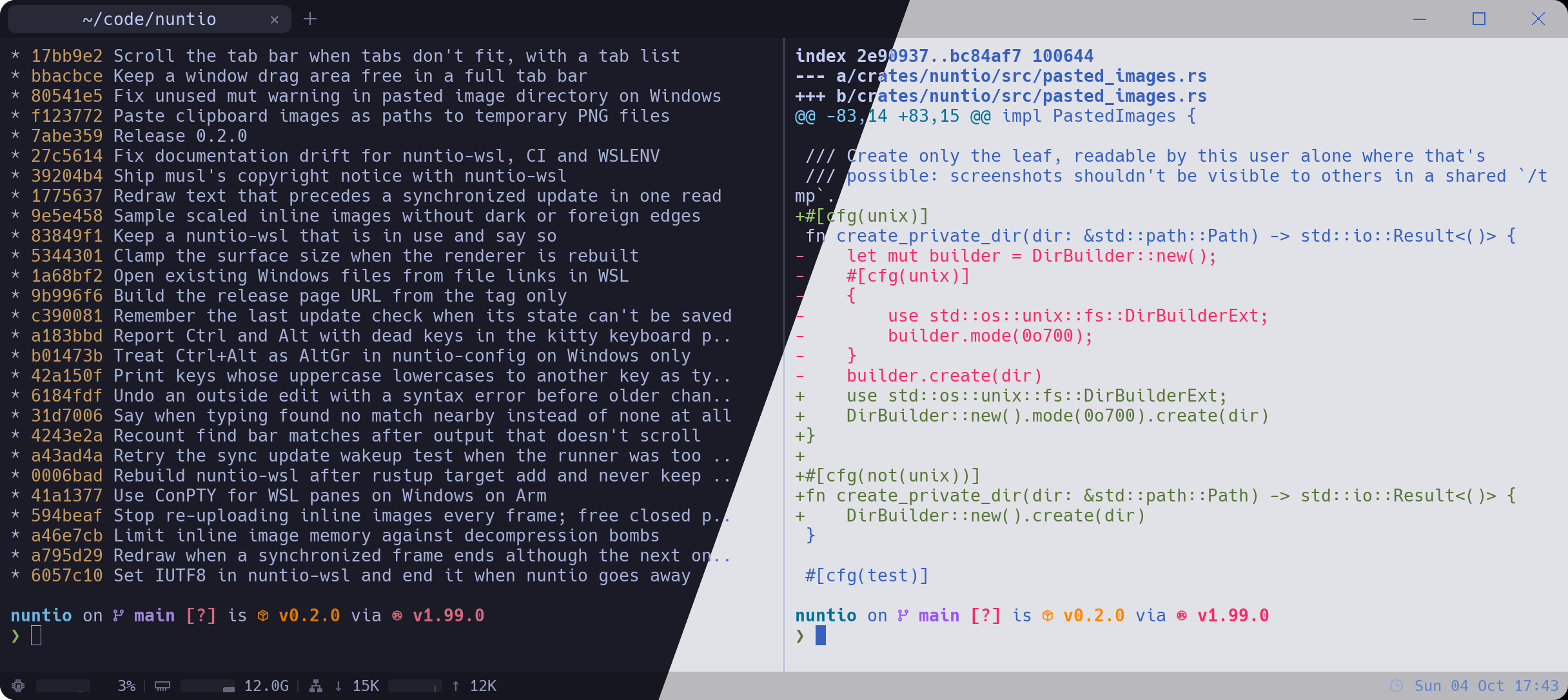
Themes are color schemes: each one sets the foreground, background, cursor and selection colors and the 16 ANSI colors. The tab bar and other overlays take their colors from the theme too.
theme is one name, or a pair theme = { light = "…", dark = "…" } that follows the OS appearance. Other keys inside theme = { … } are an error, not a warning.
Built-in themes
iTerm2 Default(the default)Solarized DarkSolarized LightDraculaTokyo NightTokyo Night StormTokyo Night MoonTokyo Night DayCatppuccin MochaCatppuccin MacchiatoCatppuccin FrappeCatppuccin LatteGruvbox DarkGruvbox LightNordOne DarkOne LightRose PineRose Pine MoonRose Pine Dawn
Theme names are case-insensitive. If a theme can't be found, nuntio falls back to iTerm2 Default and shows a warning with the list of available themes.
Custom themes
Put theme files in the themes/ directory, usually ~/.config/nuntio/themes/. Two formats are supported:
.itermcolors: color presets exported from iTerm2, or downloaded from collections such as iTerm2-Color-Schemes. The theme name is the file name without the extension, soGruvbox Dark.itermcolorsbecomestheme = "Gruvbox Dark"..toml: the same format as nuntio's built-in themes. If you leave outname, the file name is used.
A user theme with the same name as a built-in theme replaces it.
# ~/.config/nuntio/themes/my-theme.toml
name = "My Theme"
foreground = "#c0caf5"
background = "#1a1b26"
cursor = "#c0caf5"
selection_foreground = "#c0caf5"
selection_background = "#283457"
# ANSI 0–7: black, red, green, yellow, blue, magenta, cyan, white
normal = ["#15161e", "#f7768e", "#9ece6a", "#e0af68", "#7aa2f7", "#bb9af7", "#7dcfff", "#a9b1d6"]
# ANSI 8–15: the bright variants
bright = ["#414868", "#f7768e", "#9ece6a", "#e0af68", "#7aa2f7", "#bb9af7", "#7dcfff", "#c0caf5"]
All fields except name are required. Colors are written as "#rrggbb", and unknown fields are errors. A broken theme file shows a warning and is skipped.
Keybindings
Each [[keybindings]] entry binds a key combination to an action:
[[keybindings]]
key = "Ctrl+Shift+O"
action = "new_tab"

# Send Ctrl+Shift+K to the terminal instead of clearing scrollback
[[keybindings]]
key = "Ctrl+Shift+K"
action = "none"
Your bindings are added to the defaults and take precedence over them. Use action = "none" to remove a default shortcut, which passes the key through to the terminal. Invalid entries are skipped with a warning.
Key syntax
A key combination is zero or more modifiers followed by one key, joined with +. Case and spaces around + don't matter.
| Modifier | Aliases |
|---|---|
| Control | Ctrl, Control |
| Shift | Shift |
| Alt / Option | Alt, Opt, Option |
| Cmd / Super / Windows key | Cmd, Command, Super, Win, Meta |
nuntio-config and the actions menu write this modifier as Cmd on macOS, Win on Windows and Super on Linux.
The key is either a single character (T, 1, ,, ]) or one of these names:
Enter (Return), Tab, Escape (Esc), Space, Backspace, Delete (Del), Insert (Ins), Home, End, PageUp (PgUp), PageDown (PgDn), Up, Down, Left, Right, F1 to F12, Plus, Minus
Modifiers must match exactly: Ctrl+T does not fire for CtrlShiftT.
Actions
| Action | Description |
|---|---|
copy | Copy the selection |
paste | Paste from the clipboard (an image is saved as a PNG file and its path pasted) |
new_tab | Open a new tab (in the focused pane's directory with tabs.inherit_directory) |
close_tab | Close the current tab with all its panes |
close_pane | Close the focused pane (and the tab, if it was the last pane) |
next_tab, previous_tab | Switch tabs |
select_tab_1 … select_tab_9 | Go to tab n |
split_vertical | Split the focused pane side by side |
split_horizontal | Split the focused pane top and bottom |
focus_pane_left, focus_pane_right, focus_pane_up, focus_pane_down | Move focus to the neighboring pane |
resize_pane_left, resize_pane_right, resize_pane_up, resize_pane_down | Move the focused pane's divider |
zoom_pane | Toggle between the focused pane filling the tab and the split layout |
search | Open the find bar |
toggle_fullscreen | Enter or leave full screen |
scroll_page_up, scroll_page_down | Scroll by a page |
scroll_line_up, scroll_line_down | Scroll by a line |
increase_font_size, decrease_font_size, reset_font_size | Change the font size for this session |
clear_scrollback | Clear the history of the focused pane |
reload_config | Reload the config file |
open_settings | Open nuntio-config in a new tab |
open_notes | Open the notes in a new tab (default CtrlShiftN, CmdShiftN on macOS) |
open_notes_split | Open the notes in a split next to the focused pane (default CtrlAltShiftN, CmdOptShiftN on macOS) |
open_actions_menu | Open the menu of actions (the actions status bar item opens it too) |
open_shell_menu | Open the menu of shells to start a new tab with (see Profiles) |
open_agents_menu | Open the list of herdr agents (the agents status bar item opens it too; see [herdr]) |
check_for_updates | Look for a newer nuntio release now, even with updates.check off |
none | Unbind the key combination |