
nuntio The terminal for AI agents.
Paste a screenshot and your agent gets the file. Images it prints show up inline, notes and settings open in a pane, and on Windows every WSL tab gets a real Linux PTY.
- nuntio saves the clipboard image as a PNG and types its path, like a dropped file.
- Claude Code and omp attach the path to the prompt.
- Images an agent prints appear inline through the Kitty graphics protocol.
- Rendering
- GPU · wgpu
- Idle
- ~0 % CPU
- Layout
- Tabs · splits
- Themes
- 20 + your own
- Config
- One TOML · hot reload
- Find
- Regex · smart case
Screenshots in. Pictures out.
Copy a screenshot and paste it into the agent. nuntio writes the image to a private folder in the temp directory as image-1.png, image-2.png, … and pastes the path, quoted like a dropped file. Claude Code and omp attach it to the prompt. The folder is removed when nuntio exits.
Programs show pictures through the Kitty graphics protocol or iTerm2's inline images. They live in the grid, so they scroll, clear and get overwritten like text, in splits, over herdr and in WSL. omp picks the protocol on its own: nuntio sets PI_FORCE_IMAGE_PROTOCOL=kitty.
| Sequence | What nuntio does |
|---|---|
| OSC 1337 ; File= | Inline image: PNG, JPEG, GIF (first frame), WebP, BMP; size in cells, px, % or auto. |
| APC G a=T | Kitty graphics: transmit and place RGB, RGBA or PNG, zlib, chunked; delete and query. |
| CSI 16 t | Reports the cell size in pixels. |
![omp showing nuntio's icon inline on the left, Claude Code with a pasted screenshot attached as [Image #1] on the right](https://cebor.github.io/nuntio/screenshots/images.png)
- The pasted screenshot, attached as [Image #1].
- An image omp shows inline.
Know which agent is waiting.
herdr.enabled = trueRun your agents in herdr and nuntio follows them. The status bar counts agents that are blocked, done or working, each tab gets a dot in the colour of its most urgent agent, and a banner tells you when an agent outside your view needs input. Click the count for the list, and an entry to jump there.
In a pane running herdr or tmux, nuntio's split, focus, resize and zoom shortcuts send the multiplexer's own keys, so the same keys work inside.
[herdr]
enabled = true

[status_bar]
enabled = true
items = [
  "agents", "<->",
  "cpu", "memory", "datetime",
]- Each tab shows the state of its most urgent agent: red blocked, green done, blue working.
- A banner when an agent in another tab needs input.
- The
agentsstatus item; click it for the list of agents.
Notes next to your agents.
Prompts that worked, todos for the next session: notes open in a tab or a split and are plain Markdown files in one folder (notes.directory), so grep, git and your editor work on them too.
- The preview renders headings, emphasis, code, lists, quotes and checkboxes as you type; the line under the cursor shows its Markdown.
- Todos are
- [ ]lines. Each note shows its progress, and CtrlO lists open todos across all notes. - Saved a second after you stop typing. Deleted notes go to
.trash. - CtrlAltShiftN opens the notes in a split next to the focused pane.
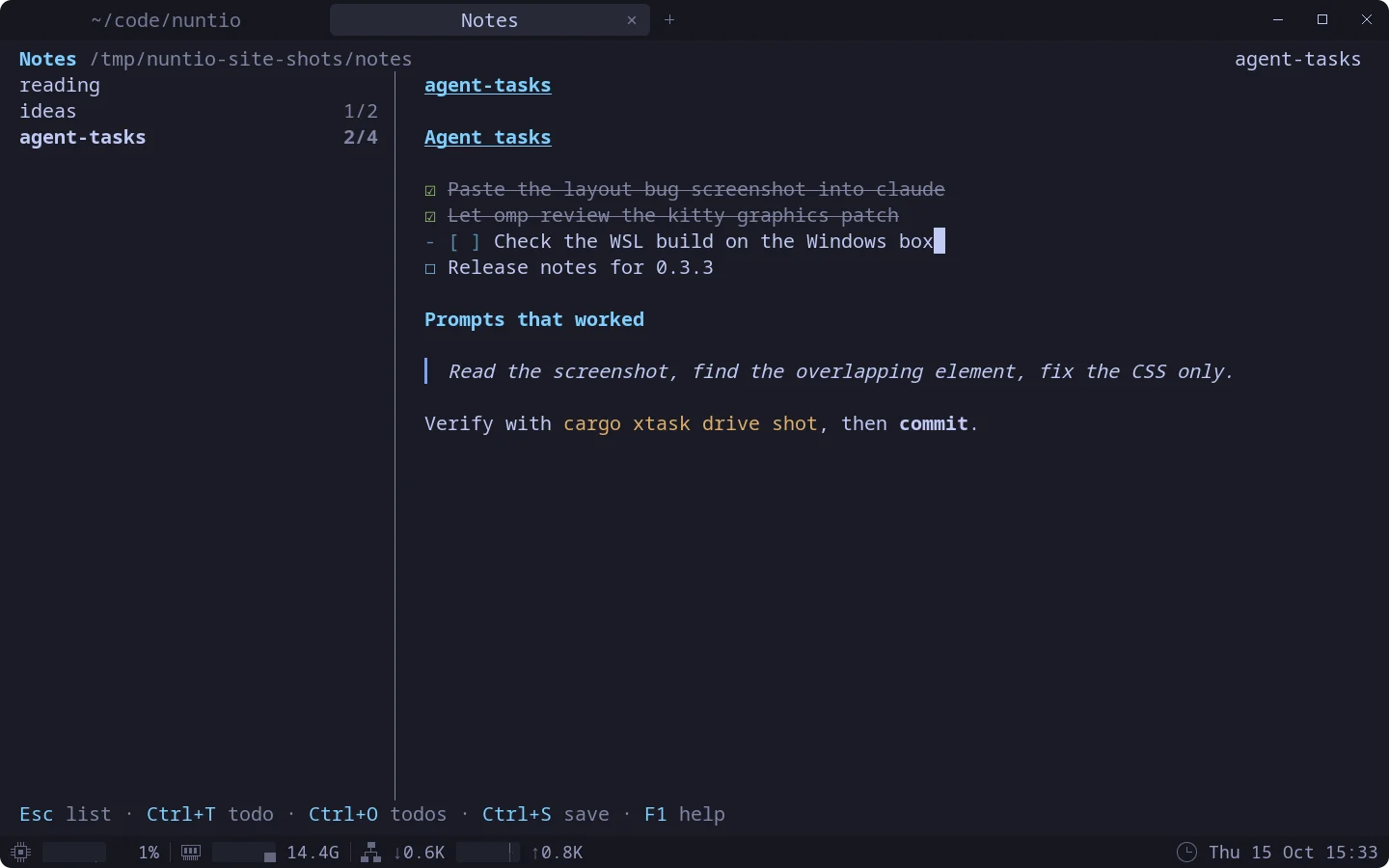
- Every note with its todo progress.
- A done todo, rendered.
- The line under the cursor shows its Markdown.
Settings that only offer valid values.
nuntio-config opens in a pane and edits ~/.config/nuntio/config.toml. Choices offer only valid values, themes and fonts preview as you move through them, and every change is written at once with your comments kept. Hot reload makes the window itself the preview.
Rather edit the file? Save it and nuntio applies it. A mistake shows a banner with the line, and the previous settings stay active. 20 themes are built in; add your own as TOML or .itermcolors, or set a light and a dark one that follow the OS.
[theme]
light = "Tokyo Night Day"
dark = "Tokyo Night"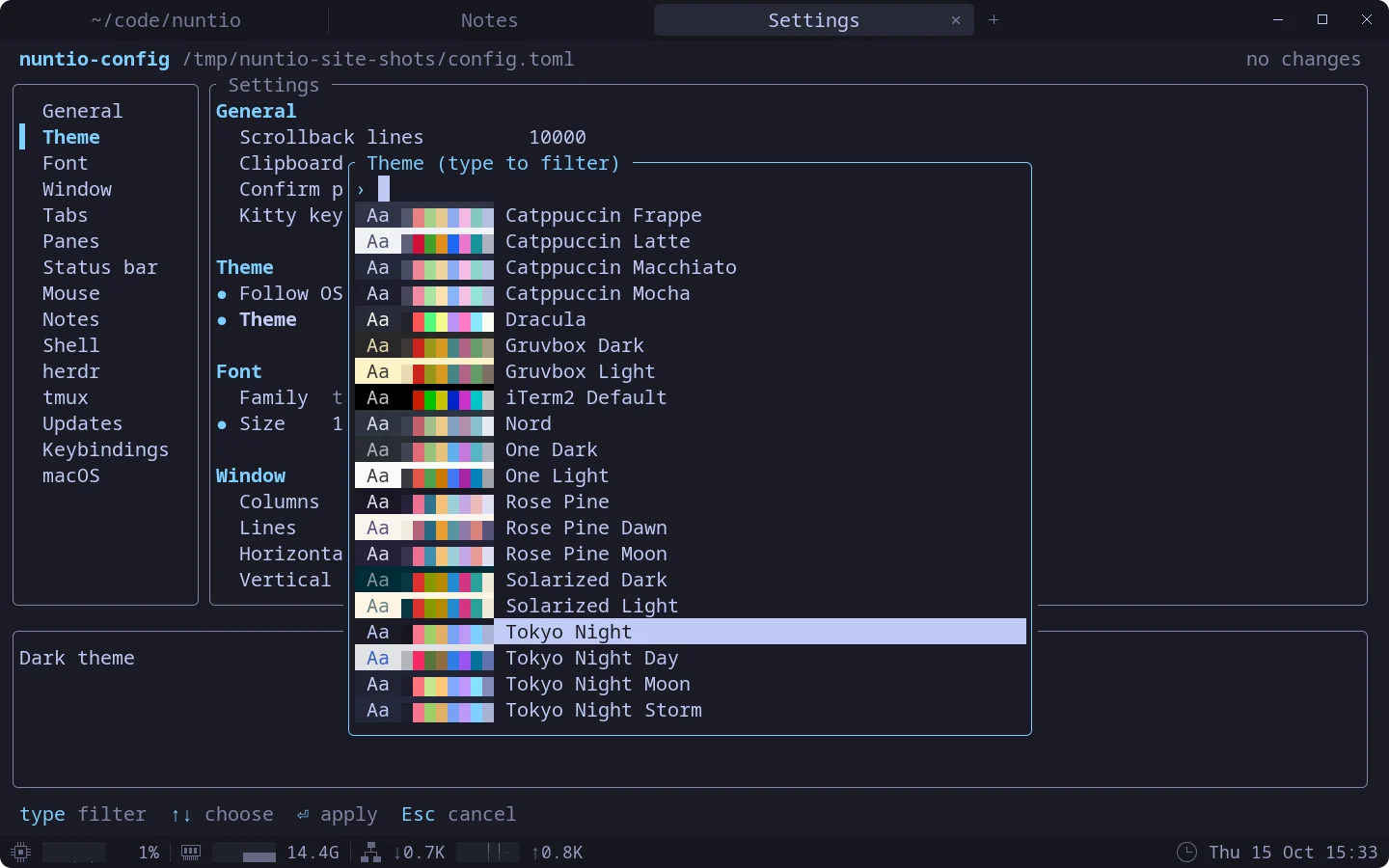
- Settings grouped by section.
- Each theme with a colour preview; the window previews it as you move.
A real Linux PTY on Windows.
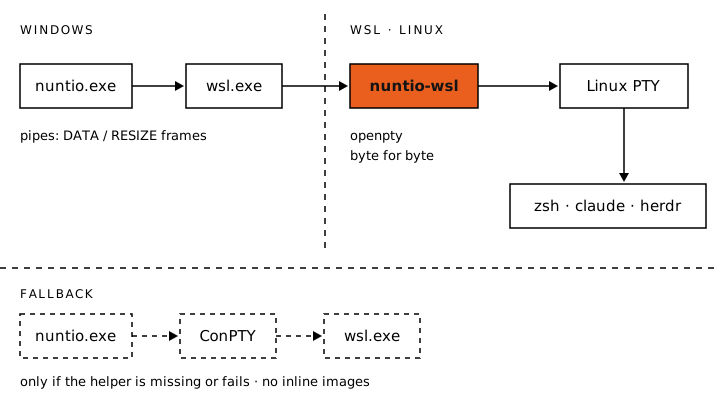
shell = { wsl = "Ubuntu" }WSL tabs don't go through ConPTY. nuntio starts its helper nuntio-wsl inside the distribution; it owns a Linux PTY and sends the output over plain pipes, byte for byte. Inline images land where they should, and tab titles follow the program running in the distribution.
- Every distribution in the shell menu
- herdr and tmux found inside each distribution
- Working directories carried between
C:\and/mnt/c - Falls back to ConPTY, with a banner, if the helper fails to start
What nuntio speaks.
TERM=xterm-256color| Protocol | Support | Notes |
|---|---|---|
| Kitty keyboard protocol | ● Yes | All five flags |
| Kitty graphics protocol | ◐ Partly | Direct transmission; no Unicode placeholders, relative placements or animation |
| iTerm2 inline images (OSC 1337) | ● Yes | PNG, JPEG, GIF, WebP, BMP |
| Sixel | ○ No | |
| Hyperlinks (OSC 8) | ● Yes | Ctrl-click (⌘-click) opens |
| Clipboard (OSC 52) | ◐ Partly | Write only; programs can't read the clipboard |
| Working directory (OSC 7, OSC 9;9) | ● Yes | Splits start there, and new tabs with tabs.inherit_directory |
| Synchronized output (DEC 2026) | ● Yes | |
| Focus events, bracketed paste | ● Yes | |
| Mouse (SGR 1006, 1002, 1003) | ● Yes | |
| Styled underlines (curly, dotted, dashed) | ● Yes | |
| Desktop notifications (OSC 9, 777, 99) | ○ No |
Install nuntio v0.3.2.
# Any distribution
❯ chmod +x nuntio-0.3.2-x86_64-linux.AppImage
❯ ./nuntio-0.3.2-x86_64-linux.AppImage

# Debian / Ubuntu
❯ sudo apt install ./nuntio_0.3.2-1_amd64.deb
Universal: Intel and Apple Silicon, macOS 11 or later
# Not signed yet. Allow the first start in System Settings →
# Privacy & Security → Open Anyway, or clear the quarantine flag:
❯ xattr -dr com.apple.quarantine /Applications/nuntio.app
# Run the installer (no admin rights needed), or
# unpack the archive and run nuntio.exe.
❯ Expand-Archive nuntio-0.3.2-x86_64-windows.zip

# Not signed yet: SmartScreen may ask you to
# confirm with More info → Run anyway.